




Dim when away
Turn on “Dim When Away” and choose a delay. The default is 10 minutes. You can also dim the screen immediately. Playback in supported apps pauses dimming on macOS 14.2 or later.

For AI computer use
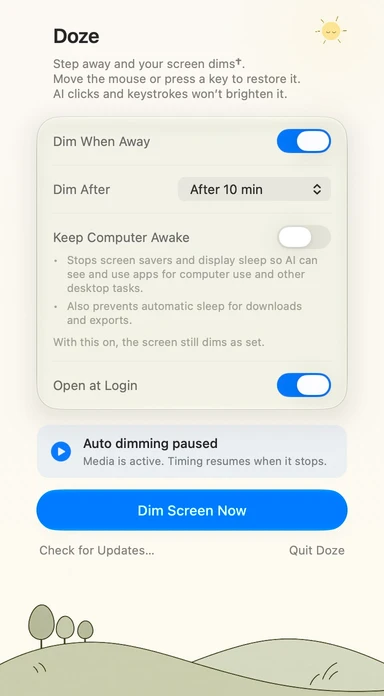
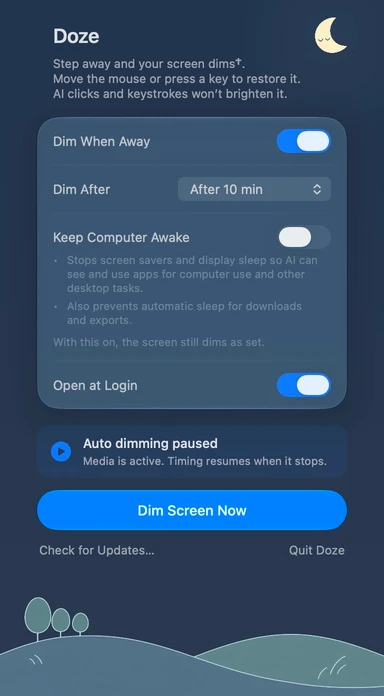
Automatically dim your screen when you step away. Enable “Keep Computer Awake” so display sleep and screen savers don’t interrupt AI computer use.
Turn on “Dim When Away” and choose a delay. The default is 10 minutes. You can also dim the screen immediately. Playback in supported apps pauses dimming on macOS 14.2 or later.
Move the mouse, use the trackpad or press a key to restore brightness. Simulated clicks and keystrokes from tested AI tools do not brighten the screen; other tools may behave differently.
With this on, the screen still dims as set.
Supports built-in Mac displays and displays with system brightness control, such as Studio Display. Other external displays are not guaranteed. Whether the screen goes fully dark depends on the display.
Yes. “Keep Computer Awake” does not prevent either. Turning it off or quitting Doze restores your previous settings.
On macOS 14.2 or later, Doze pauses automatic dimming while supported players or browsers use audio. After audio output stops, the full waiting time starts again. You can still dim the screen manually. A circular play marker in the menu bar and a status card below the settings show when dimming is paused. This covers VLC, QuickTime Player, IINA, mpv, Infuse and Apple TV, plus Chrome, Edge, Firefox, Brave, Arc, Opera, Vivaldi and Zen. Videos without audio may not be detected. Some apps keep their audio connection after pausing, so you may need to close the media or its browser tab before timing resumes. Safari, Apple Music and Spotify do not pause automatic dimming in this version.